---
title: 'Angular: @ViewChild() and @ContentChildren() decorators'
url: https://blog.octoperf.com/angular-viewchild-and-contentchildren-decorators/
date: '2022-06-07'
authors:
- gpereira
categories:
- Development
tags:
- Angular
- IntelliJ
description: How to use @ViewChild() and @ContentChildren() parameter decorators in an Angular application to create a composite component.
---
# Angular: @ViewChild() and @ContentChildren() decorators
With the release of [OctoPerf's new UI](https://api.octoperf.com/ui/ "OctoPerf new UI") we wanted to create a component that would allow
our users to easily edit [HTTP request actions](https://api.octoperf.com/doc/design/edit-virtual-user/action-types/http-actions/).
The new UI being heavily inspired by [IDEs](https://en.wikipedia.org/wiki/Integrated_development_environment) such as
Eclipse or Visual Studio we decided to **create a component that behaves likes
the [project settings panel of IntelliJ](https://www.jetbrains.com/help/idea/configure-project-settings.html)**:
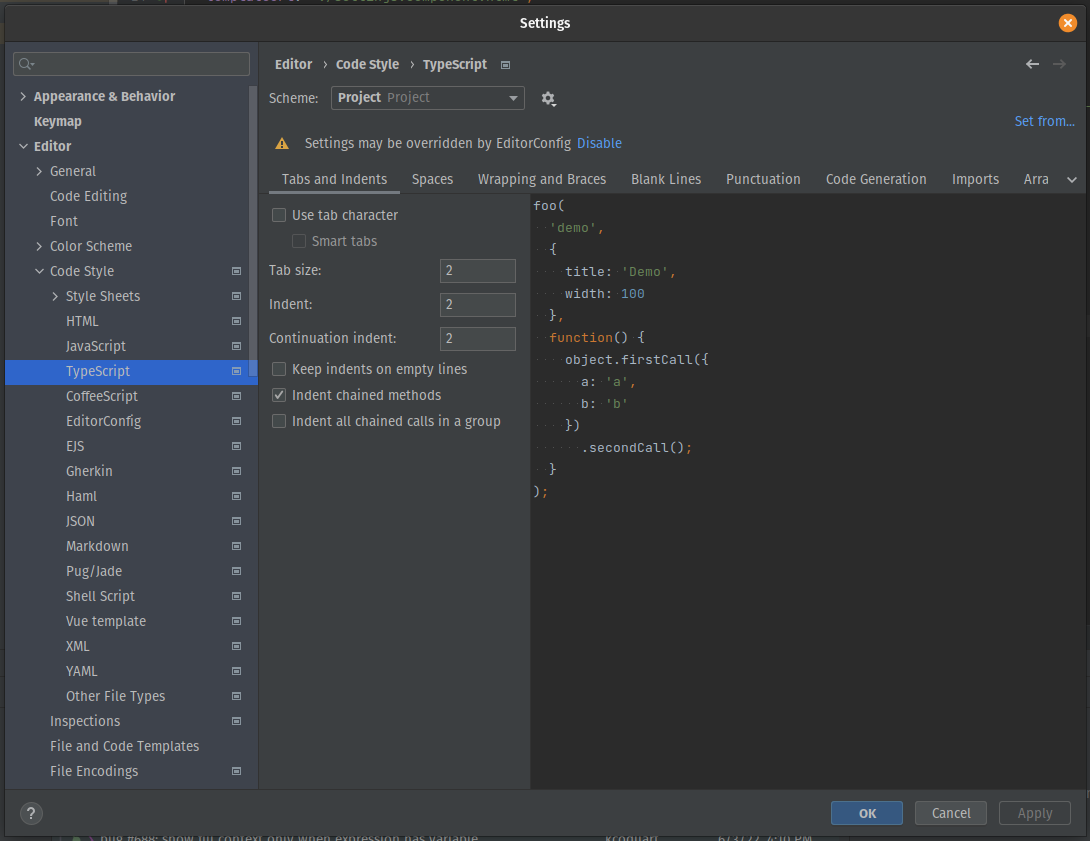
This panel displays a tree on its left part with a search input on top. The content of the left part changes depending
on the current selection.
While our simplified version will only display a list on the left panel, the idea is to create a composite component :
> A visual component made of disparate or separate parts or elements, here a parent _settings_ component and children
> _settings panel_ components.
## Composite Component
Concretely, from a development point of view, such component usage will be like this:
```html
Panel 1 header
Panel 1 content
Panel 2 header
Panel 2 content
```
The parent component `` contains several ``.
Each one of them defines:
* a _header_ displayed in the left menu,
* a content displayed on the right when the header is selected.
How to make this happen? **By using a combination of the `@ViewChild` and `@ContentChildren` parameter decorators.**
## Parameter decorators
### Using @ViewChild in the panel component
The [@ViewChild parameter decorator](https://angular.io/api/core/ViewChild) configures a view query, meaning that an
element from the [DOM](https://developer.mozilla.org/en-US/docs/Web/API/Document_Object_Model/Introduction) can be
injected into the component. The result of the query is dynamic and updated when the DOM changes.
Given the following HTML `settings-panel.component.html`:
```html
```
And the `settings-panel.component.ts`:
```typescript
import {Component, EventEmitter, Input, Output, TemplateRef, ViewChild} from '@angular/core';
@Component({
selector: 'lib-settings-panel',
templateUrl: './settings-panel.component.html',
styleUrls: ['./settings-panel.component.scss']
})
export class SettingsPanelComponent {
@ViewChild('headerTemplate', {static: true}) header!: TemplateRef;
@ViewChild('contentTemplate', {static: true}) content!: TemplateRef;
constructor(private service: SettingsService) {
}
public get isSelected(): boolean {
return this.service.isSelected(this);
}
}
```
The `header` parameter points to the HTML `` element. Here we query the DOM
using the _headerTemplate_ ID :
* Defined in the typescript with _@ViewChild(**'headerTemplate'**)_,
* Defined in the HTML with __.
**The `{static: true}` configuration** of the _@ViewChild_ decorator is a performance optimization: it tells Angular to
only
query the DOM once and not look for updates.
**The [TemplateRef](https://angular.io/api/core/TemplateRef) refers to an embedded template** (the `` like this:
```html
Panel 1 header
Panel 1 content
```
The _Panel 1 header_ text will be injected in the resulting HTML in place of the ``
element and the `Panel 1 content
` in place of the `` element.
Generated HTML:
```html
Panel 1 header
Panel 1 content
```
> The `` element can be used with a selector (for example `select="[header]"`) to only inject a specific
> part of the HTML (here ``) or without selector for the rest (here injecting
> the `Panel 1 content
`).
### Using @ContentChildren in the settings component
Now that we have created a child _settings-panel_ component with a header and a content, let's create a parent component
that wraps it.
**It will use the [@ContentChildren](https://angular.io/api/core/ContentChildren) parameter decorator.**
The `settings.component.ts` component is defined as follows :
```typescript
import {
AfterContentInit,
Component,
ContentChildren,
EventEmitter,
HostBinding,
Input,
OnDestroy,
OnInit,
Output,
QueryList
} from '@angular/core';
import {SettingsService} from '@library/layout/settings/settings.service';
import {SettingsPanelComponent} from '@library/layout/settings/settings-panel/settings-panel.component';
@Component({
selector: 'lib-settings',
templateUrl: './settings.component.html',
styleUrls: ['./settings.component.scss'],
providers: [SettingsService]
})
export class SettingsComponent implements AfterContentInit, OnDestroy {
@ContentChildren(SettingsPanelComponent) panels!: QueryList;
private readonly subscriptions: Subscription[] = [];
constructor(public service: SettingsService) {
}
ngAfterContentInit(): void {
this._panelsChanged();
this.subscriptions.push(this.panels.changes.subscribe(this._panelsChanged.bind(this)));
}
ngOnDestroy(): void {
this.subscriptions.forEach(s => s.unsubscribe());
}
_panelsChanged(): void {
// React to panels Query list update
}
}
```
Children panel are injected using `@ContentChildren(SettingsPanelComponent) panels!: QueryList;`
While the ViewChild decorator allows to query for a single element from the **view DOM**, the ContentChildren decorator
queries a list of elements in the **content DOM**.
> **Difference between view and content DOMs** :
>
> * The view DOM is the HTML directly defined in the component HTML file (for example in `settings-panel.component.html`
for our previous panel component),
> * The content DOM is the HTML defined inside the component when it is used.
>
> In our example the content DOM is the HTML that lies inside the
> SettingsComponent (` Content DOM `) element.
> This explains the many _lib-settings-panel_ elements, allowing us to inject them in the parent component.
Here the selector (what's inside the parenthesis @ContentChildren(**selector**)) is the component
SettingsPanelComponent. It could be any class with the `@Component` or `@Directive` decorators, etc. Check
the [API documentation](https://angular.io/api/core/ContentChildren#description) for more information.
Also, we did not use the `{static: true}` option here, meaning that if a child Settings panel is added or removed (for
example using an `*ngIf`), the _panels_ query list will be updated.
Content queries are set before the `ngAfterContentInit` callback is called. So _SettingsComponent_ implements
_AfterContentInit_ and we subscribe to the panels [QueryList](https://angular.io/api/core/QueryList) _changes_
observable in the _ngAfterContentInit_ method.
The `_panelsChanged` method would typically react to changes in the panels list. For example if a panel is removed, the
currently selected one might need to be updated.
The HTML template for the `settings.component.html` file makes usage of the component _panel_ :
```html
No match found!
```
The left part (`