---
title: Install OctoPerf on Kubernetes With Our Helm Charts
url: https://blog.octoperf.com/install-octoperf-on-kubernetes-with-our-helm-charts/
date: '2026-10-25'
authors:
- gpereira
categories:
- Tutorials
tags:
- Kubernetes
- Docker
- On Premise
- Runtime
- Scalability
description: Install OctoPerf Enterprise Edition 18 on a Kubernetes cluster with its Helm chart, register a Kubernetes agent with a second chart, and run a first load test whose load generators are pods of the cluster. A walkthrough on minikube.
---
# Install OctoPerf on Kubernetes With Our Helm Charts
Most of our self-hosted customers run [OctoPerf Enterprise Edition](https://blog.octoperf.com/octoperf-enterprise-edition/) with Docker Compose. But more and more of them run everything else on [Kubernetes](https://en.wikipedia.org/wiki/Kubernetes), and they ask how to install OctoPerf there too. We actually maintain **two Helm charts** for that: one for the OctoPerf server, and one for an agent that runs the load generators as pods of the cluster.
In this blog post I install [OctoPerf 18](https://blog.octoperf.com/octoperf-18-test-as-code-with-k6-and-core-web-vitals-for-playwright/) on a local [minikube](https://minikube.sigs.k8s.io/) cluster with these charts, register a Kubernetes agent and run a small load test against our demo shop. Everything runs on a single Linux laptop, and the same charts work on a real cluster with a few more settings.
## Table of Contents
- [What you need](#prerequisites)
- [Start minikube](#minikube)
- [Install OctoPerf with Helm](#install-octoperf)
- [Create an account and a provider](#provider)
- [Install the Kubernetes agent](#agent)
- [Run a first test](#first-test)
- [Going further on a real cluster](#real-cluster)
- [Conclusion](#conclusion)
## What you need { #prerequisites }
I ran this tutorial on Ubuntu with 24 CPUs and 64 GB of RAM, which is a lot more than needed. Here is what you need on your computer:
- [Docker](https://docs.docker.com/engine/install/), used by minikube to run the Kubernetes node,
- [minikube](https://minikube.sigs.k8s.io/docs/start/), I used version `1.39` with Kubernetes `1.37`,
- [kubectl](https://kubernetes.io/docs/tasks/tools/) and [Helm](https://helm.sh/docs/intro/install/) `3`,
- `git` and `make`, to get the charts and run their example,
- at least 4 CPUs and 8 GB of RAM that you can give to minikube.
The charts live in our [helm-charts](https://github.com/OctoPerf/helm-charts) repository on GitHub:
- `enterprise-edition` installs the OctoPerf server: the backend, the web UI, the MCP server and an Elasticsearch database,
- `kubernetes-agent` installs an [on-premise agent](https://api.octoperf.com/doc/on-premise-agent/provider-type/on-premise/#kubernetes-agent) that launches each load generator as a pod of the cluster.
> __Note:__ OctoPerf Enterprise Edition comes with a [free license](https://api.octoperf.com/doc/on-premise-infra/license/): 50 concurrent virtual users, 10 user profiles and tests of up to 1 hour. That's plenty for this tutorial, and you can install a license file later on.
## Start minikube { #minikube }
First, let's start a minikube cluster with enough resources. I gave it 8 CPUs and 16 GB of memory:
```bash
minikube start --driver=docker --cpus=8 --memory=16g
minikube ip
192.168.49.2
```
With the docker driver, the IP of the node is `192.168.49.2`. It matters because the example of the chart uses the hostname `192.168.49.2.sslip.io`: [sslip.io](https://sslip.io/) is a public DNS service that resolves this name to the IP it contains. **Your browser and the pods of the cluster reach OctoPerf on the same address**, without editing any `/etc/hosts` file.
> __Note:__ If `minikube ip` gives you another IP, for example with another driver, replace `192.168.49.2` with your IP in the `values.yaml` file of the example.
Ingresses are served by Traefik since OctoPerf 18, so the `ingress` addon of minikube (which installs ingress-nginx) must stay disabled:
```bash
minikube addons disable ingress
```
## Install OctoPerf with Helm { #install-octoperf }
Now let's get the charts and go into the minikube example of the `enterprise-edition` chart:
```bash
git clone https://github.com/OctoPerf/helm-charts.git
cd helm-charts/enterprise-edition/examples/minikube
make install
```
The `make install` target does basically two things. It enables the storage addons of minikube and installs Traefik with its official chart and the settings in `traefik-values.yaml`. Then it installs the OctoPerf chart in the `octoperf` namespace, with the `values.yaml` of the example:
```yaml
elasticsearch:
enabled: true
esJavaOpts: "-Xmx1g -Xms1g"
mcpServer:
enabled: true
applicationYml: |-
server:
hostname: 192.168.49.2.sslip.io
public:
port: 80
backend:
applicationYml: |-
server:
hostname: 192.168.49.2.sslip.io
public:
port: 80
elasticsearch:
hostname: elasticsearch-master-headless
password: "0ct0P3rf"
ingress:
enabled: true
hosts:
- 192.168.49.2.sslip.io
```
The `applicationYml` blocks are the `application.yml` of the backend and of the MCP server: any [setting of the server](https://api.octoperf.com/doc/on-premise-infra/configuration/) can go there. I shortened the file a bit, the example also disables the documentation and the utility server and requests smaller volumes for Elasticsearch.
The first start takes a few minutes, since the images must be downloaded. You can follow it with `kubectl`:
```bash
kubectl -n octoperf get pods
NAME READY STATUS RESTARTS AGE
elasticsearch-master-0 1/1 Running 0 3m
enterprise-edition-backend-0 1/1 Running 1 3m
enterprise-edition-frontend-7fb545c9c7-rdc6s 1/1 Running 0 3m
enterprise-edition-mcp-server-b57668fd9-m85wd 1/1 Running 0 2m
```
> __Note:__ Don't worry if the backend restarts once, or if the MCP server fails a few times at startup. They wait for Elasticsearch and for the backend, and everything settles down once all the pods are ready.
**OctoPerf is then available on http://192.168.49.2.sslip.io/ui.**
## Create an account and a provider { #provider }
OctoPerf Enterprise Edition starts empty. Open the UI and click **Register** to [create an account](https://api.octoperf.com/doc/account/#sign-up). You are logged in right away, with a workspace and a sample project.
To run a test, OctoPerf needs load generators. They are grouped in [providers](https://api.octoperf.com/doc/on-premise-agent/providers/), and an [on-premise provider](https://blog.octoperf.com/on-premise-load-injectors-in-2-min/) gets its load generators from the agents you install yourself. So I opened **Workspace > On Premises**, clicked **Create Provider > On-Prem**, named it `Minikube` and kept the default location.
At the end of the wizard, OctoPerf asks to add an agent. The **Add Agent** dialog gives a Docker command to run on a Linux machine. We will not run it as is, but it contains the two values our Kubernetes agent needs:
- `AGENT_TOKEN`, the token that identifies the agent and its provider,
- `SERVER_URL`, the address the agent connects to, here `http://192.168.49.2.sslip.io`.
The token is masked on screen, so click **Copy Command** and take the value of `AGENT_TOKEN` from the copied text.
## Install the Kubernetes agent { #agent }
**The Kubernetes agent runs as a pod and starts each load generator as another pod of the cluster.** It needs the token and the server URL, which I pass on the command line:
```bash
cd ../../../kubernetes-agent
helm install kubernetes-agent . --namespace octoperf \
--set token='' \
--set serverUrl=http://192.168.49.2.sslip.io
```
After a few seconds, the agent shows up on the **Providers** page. Click **Refresh Agents** if it is not there yet:

The memory column is the memory the agent sees on its node.
> __Note:__ With the docker driver, the minikube node reports the memory of the host computer, not the 16 GB given to minikube. On a real cluster, the agent reports the memory of the nodes. The provider sizes the load generators with its own *Amount of memory per agent* setting, 4 GB by default, which is the value to adjust to your nodes.
The `kubernetes-agent` chart has [other settings](https://github.com/OctoPerf/helm-charts/tree/master/kubernetes-agent#readme) for these load generator pods: memory and CPU requests and limits, tolerations, image pull secrets and, since OctoPerf 18, their security context.
## Run a first test { #first-test }
For the test, I created a small Virtual User from four URLs of our [demo shop](https://petstore.octoperf.com/): the catalog, the Fish and Dogs categories and a product page. In **Design**, click **Create Virtual User > Manual creation > Static Website** and paste the URLs.
Then I validated it in the location of my Minikube provider. The validation starts a load generator pod on the cluster, runs one iteration and **checks that every request gets a proper response**:

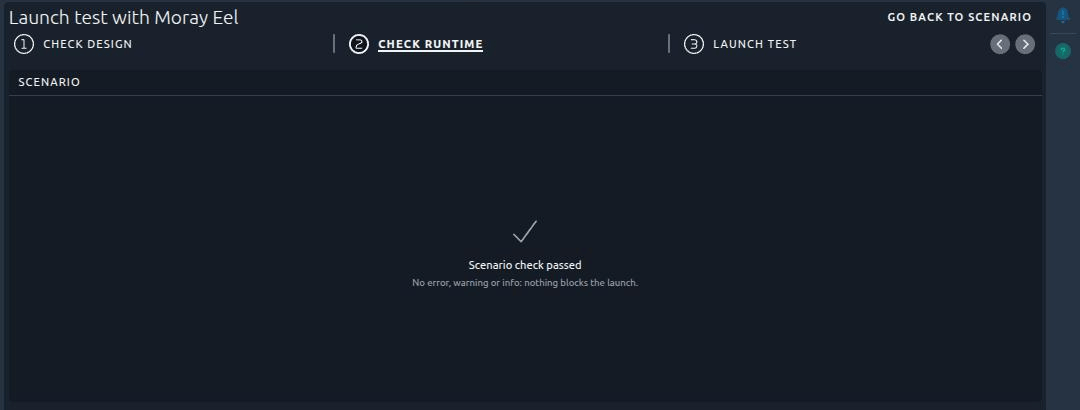
Next, I created a scenario with this Virtual User: 10 concurrent users for 10 minutes, in the `default` location of the Minikube provider. Before the launch, the [scenario check](https://api.octoperf.com/doc/runtime/edit-scenario/scenario-check/) of OctoPerf 18 looks for anything that would make the test fail, like a location without an agent or agents too small for the load. Here everything was fine:
During the test, the load generator runs as a pod next to the agent, named after it:
```bash
kubectl -n octoperf get pods
NAME READY STATUS RESTARTS AGE
enterprise-edition-backend-0 1/1 Running 0 6m
kubernetes-agent-684bfcd869-vk9gl 1/1 Running 0 44m
yellow-curt-johns-trev 1/1 Running 0 26s
```
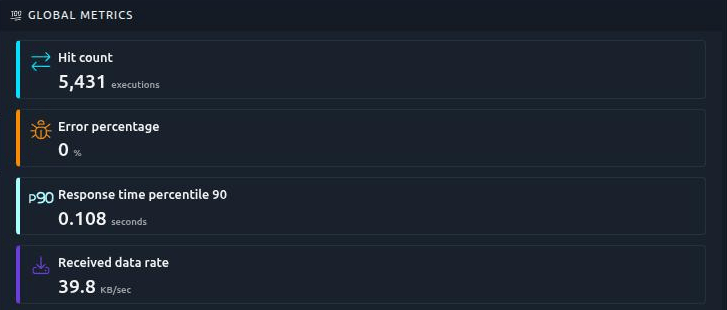
The agent deletes the pod at the end of the test. **The 10 users sent 5,431 requests in 10 minutes, without a single error**, and 90 % of the pages answered in less than 108 milliseconds:
The report is the same as with any other provider, so I won't go through it here. Our [reporting engine](https://octoperf.com/product/load-testing-reporting-engine/) page shows what it can do.
## Going further on a real cluster { #real-cluster }
The minikube example is meant for a test on your computer. On a production cluster, here are the settings I would look at first:
- the hostname, in `ingress.hosts` and in the `applicationYml` of the backend and of the MCP server, with TLS on the Traefik side,
- the Traefik [request read timeout](https://github.com/OctoPerf/helm-charts/tree/master/enterprise-edition#prerequisites), to raise for the upload of large JMeter projects and CSV files,
- a real Elasticsearch, either the cluster of the chart with three nodes and persistent volumes, or your own with `elasticsearch.enabled: false`,
- your license file, under `backend.licenseFile`,
- one Kubernetes agent per node that runs load generators, since an agent only starts pods on its own node.
The [README of the chart](https://github.com/OctoPerf/helm-charts/tree/master/enterprise-edition#readme) lists every setting. If you upgrade from OctoPerf 17, also read the [migration guide](https://api.octoperf.com/doc/on-premise-infra/migration/17.1.x-to-18.0.0/): the chart moved from ingress-nginx to Traefik, and the agents installed before 18.0.0 need a new token.
> __Note:__ The chart also installs the OctoPerf MCP server on `/mcp`. An AI agent can then drive your self-hosted OctoPerf, as we showed in our [fully on-premise MCP walkthrough](https://blog.octoperf.com/octoperf-mcp-server-fully-on-premise-ai-load-testing-with-a-local-llm/).
## Conclusion { #conclusion }
From an empty minikube to a first test result, it took me a `make install`, a `helm install` and a few clicks in the UI. **The load generators are plain pods of the cluster**, so they follow the rules of the cluster like any other workload.
If your company runs its tools on Kubernetes, give the [helm charts](https://github.com/OctoPerf/helm-charts) a try with the free license, and [contact us](https://octoperf.com/contact/) for a license that fits your load. You can also read more about [on-premise load testing with OctoPerf](https://octoperf.com/use-cases/on-premise-performance-center/).