elements` | | `element,element` | `div, p` | `All
elements` | | `element element` | `div p` | `All
elements inside
elements` | | `el1,el2,el3` | `$("h1,div,p")` | `All
elements` | See the difference with CSS Selectors? It's only a matter of taste. Use the syntax you feel most comfortable with. But, is there **a way to easily get the CSS Selector** of any given element in a web page? Yes! ### Chrome - Copy CSS Selector [Google Chrome](https://www.google.com/chrome/index.html) has a feature within the [devtools bar](https://developer.chrome.com/devtools) which allows you to easily copy the css selector of any element within a web page. Let's see how to do this on our [Petstore Demo](https://petstore.octoperf.com). 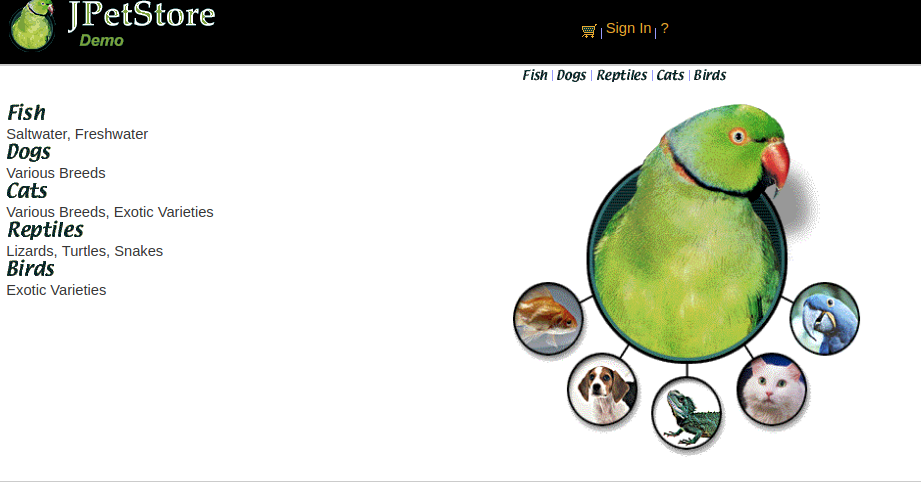 Now, let's try to get the **CSS Selector** of the *FISH* [HTML link](https://www.w3schools.com/html/html_links.asp): - Right-click on the FISH link and select `Inspect`, 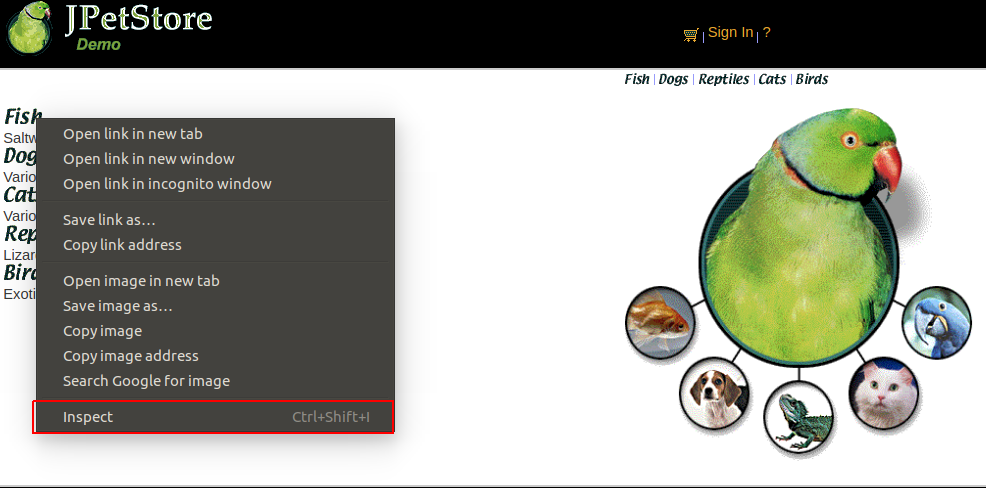 It should open the **Chrome Developer Tools** bar at the bottom. - Within the HTML code from *source* tag, Right-click on the element and choose `Copy > Copy Selector` menu. 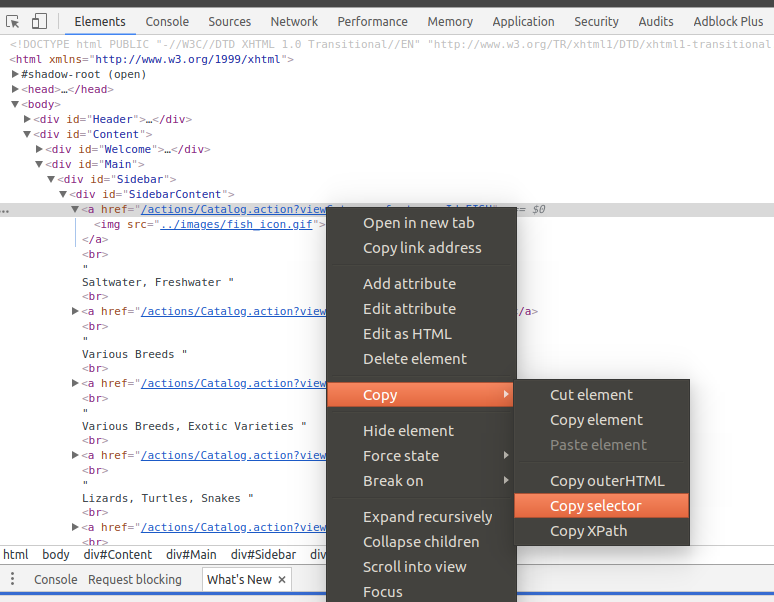 It should **copy the selector to clipboard**: `#SidebarContent > a:nth-child(1)`. This selector selects the first link within the sidebar. Great! Now we know what selectors are and how to extract them from web pages easily. It's time to take a look at **JMeter**! ## CSS JQuery Extractor ### Configuration 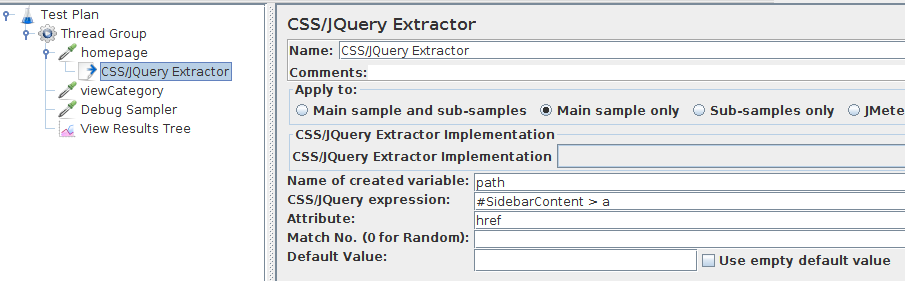 JMeter's [CSS JQuery Extractor](https://jmeter.apache.org/usermanual/component_reference.html#CSS/JQuery_Extractor) has the following specific configuration: - **Reference Name**: name of the resulting variable, available in subsequent samplers with the syntax `${foo}` (when entering `foo`), - **CSS / JQuery Expression**: basically the selectors we've seen just before, - **Attribute**: the attribute of the element to extract. Example: `href` when selecting a link like `Link`, - **Match Nr**: like other Post Processors, `0` for random one, otherwise the index (starting from 1) when multiple values available, - **Default Value**: the value to put into the variable in case the content could not be extracted. The configuration is really **pretty similar to XPath, Regexp or Json Extractors**. ### Where to place it CSS JQuery Extractor is a kind of [JMeter Post Processors](https://jmeter.apache.org/usermanual/component_reference.html#postprocessors). It means it must be placed as a child of a [Sampler](https://jmeter.apache.org/usermanual/component_reference.html#samplers). The extractor is then executed against the sample result of the sampler. Didn't got it? Let's see a **concrete example**. 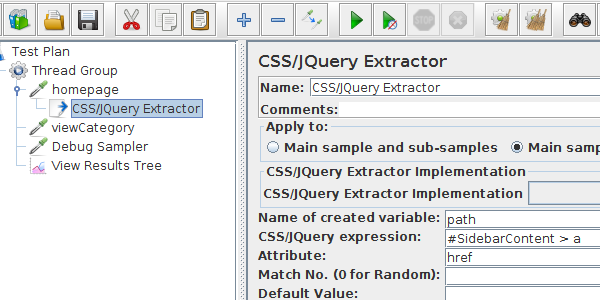 Here the extractor is under the *homepage* sampler, which is an [HTTP Request](https://jmeter.apache.org/usermanual/component_reference.html#HTTP_Request). Let's see now a concrete usage on our **Petstore Demo**. ## Concrete Example For the purpose of this example, we take our [Petstore Demo](https://petstore.octoperf.com) to simulate the following script: - **Visit homepage**: we'll use the response later, - **Extract a random link** from the sidebar, - **Visit the product category** page extracted from the sidebar. ### Visit Homepage The first step is to **query the homepage** using an **HTTP Request**. 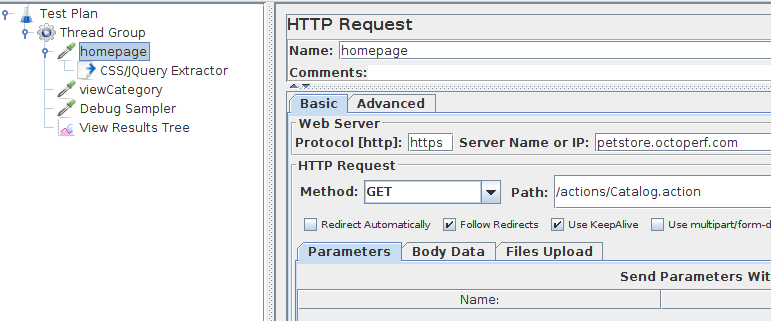 We'll use the received server response to extract a random link from the sidebar using the CSS / JQuery Extractor. ### Extract Random Link Let's place a CSS JQuery Extractor under the homepage sampler.  The **extractor will be executed after** the homepage sampler. We use the following configuration: - **Name of created Variable**: `path`, - **CSS/JQuery Expression**: `#SidebarContent > a`, - **Attribute**: we select the `href` attribute from the link (which is a relative path), - **Match Nr**: `0`, but can be left empty for the same result. ### Visit Product Category 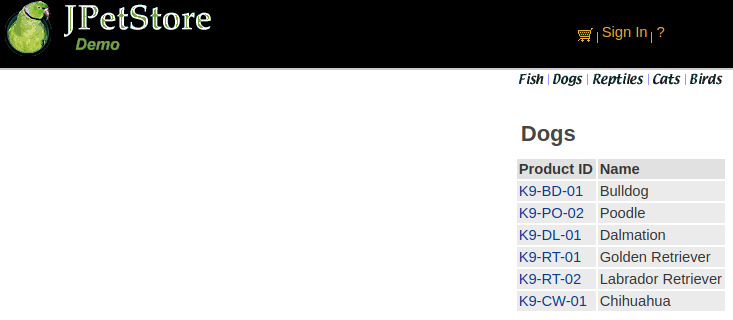 Then, we need to add an HTTP Request to visit the product category page using the `${path}` variable previously extracted. 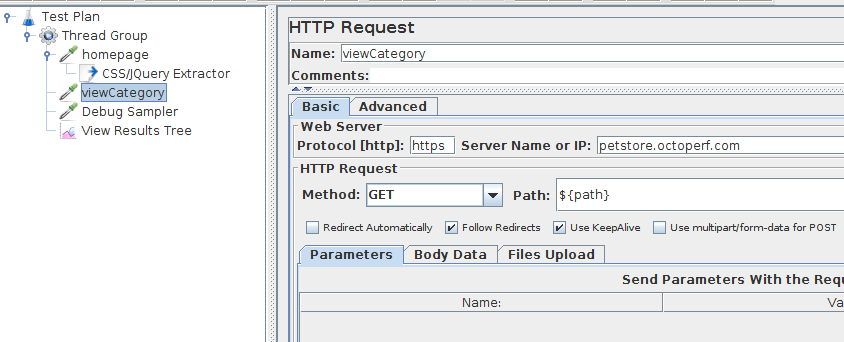 Finally, let's add a [Debug Sampler](https://jmeter.apache.org/usermanual/component_reference.html#Debug_Sampler) to display JMeter variables during the run. 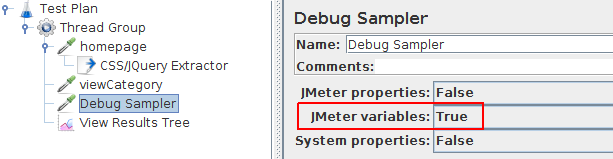 and a [View Results Tree](https://jmeter.apache.org/usermanual/component_reference.html#View_Results_Tree) listener to see the results. 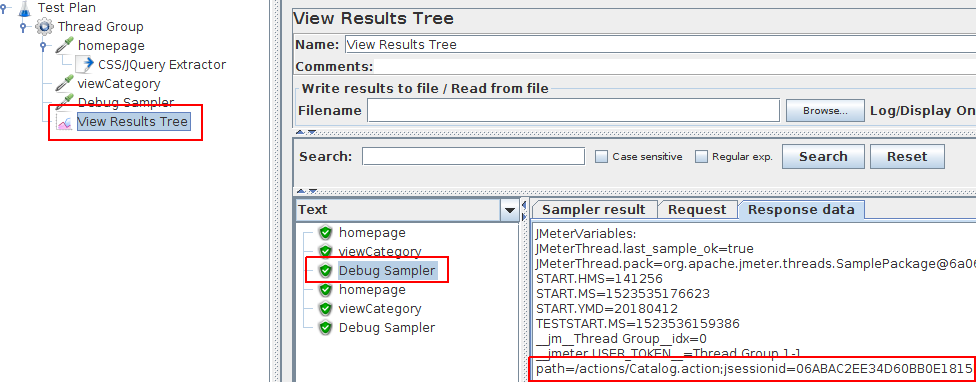 Okay, we're ready to run our script! 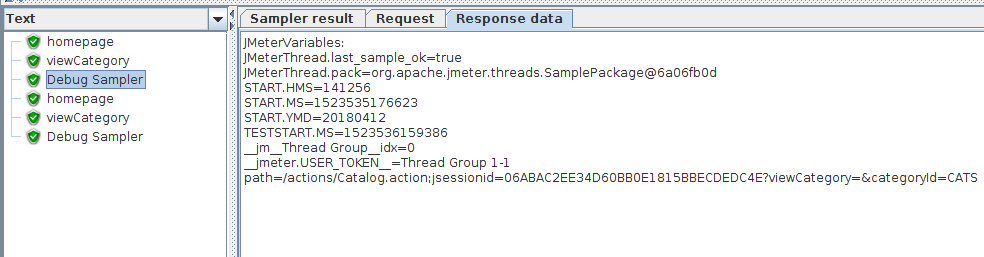 On the first run we got: ``` path=/actions/Catalog.action;...?viewCategory=&categoryId=CATS ``` 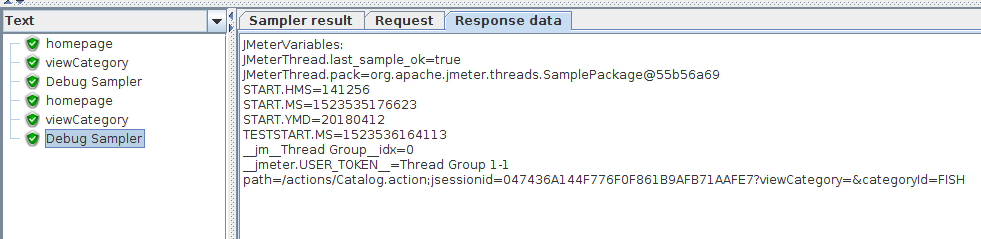 And, on the second run we got something different: ``` path=/actions/Catalog.action;...?viewCategory=&categoryId=FISH ``` We managed to **simulate a random product category selection using the CSS / JQuery Extractor**! On each run, the extractor takes a random link and extracts its `href` attribute. We then reinject the resulting `${path}` variable into an HTTP Request. Of course, there are many other possible ways to use this extractor. That's just a simple example to pave the way and get you started quickly. Feel free to **play with it from your own JMeter**! ## Performance Pretty much like the [XPath Extractor](https://blog.octoperf.com/jmeter-xpath-extractor-guide/#performance), The CSS / JQuery extractor suffers the same flaws: - It's usually much slower than a [Regexp Extractor](https://blog.octoperf.com/jmeter-regex-extractor-how-to-extract-variables/) because it needs to convert the page into a [DOM document](https://www.w3schools.com/jsref/dom_obj_document.asp), - **CPU and memory consumption are high**, which makes it unsuitable for heavy load tests (but for [functional testing](https://en.wikipedia.org/wiki/Functional_testing) it's fine!) - Most variable extractions can be easily performed using **Regular Expressions**. Anyway, JMeter offers this alternative. Just make sure to **carefully consider other options** before rushing to use the CSS JQuery Extractor. ## Learning JMeter Want to improve your JMeter skills? There are some great **JMeter Books** out there! (not kidding)