---
title: 'JMeter Regex Extractor: How to Extract Variables'
url: https://blog.octoperf.com/jmeter-regex-extractor-how-to-extract-variables/
date: '2017-09-07'
authors:
- gbetaillouloux
categories:
- JMeter
tags:
- Design
- JMeter
- Regexp
- Memory
- Correlation
- JQuery
description: Extract Single or Multiple JMeter variables from a server response using Regex Post-Processor. All the secrets to master Regular Expressions revealed.
---
# JMeter Regex Extractor: How to Extract Variables
You're surely here because you are looking for the **Ultimate Tutorial** explaining how [JMeter's Regex Extractor](https://jmeter.apache.org/usermanual/component_reference.html#Regular_Expression_Extractor) works.
Great News! This post covers everything you need to know about **variable extraction** using [Regular Expressions](https://en.wikipedia.org/wiki/Regular_expression).
We'll learn many concepts along the way:
- How to re-use JMeter variables (like `${foo}`) in subsequent samplers and controllers (*If Controller*, *Response Assertion*, etc.),
- How to extract single and multiple values from an [HTTP message body](https://en.wikipedia.org/wiki/HTTP_message_body),
- How to write **lightning fast** regular expressions, and boost JMeter speed,
- and more!
By the way, we suggest you to take a look at **our tutorials** explaining how to use [Json Extractor](https://blog.octoperf.com/how-to-extract-data-from-json-response-using-jmeter/) and [XPath Extractor](https://blog.octoperf.com/jmeter-xpath-extractor-guide/) too.
Let's have some fun!
## JMeter Regex Extractor
### How It Works
**JMeter Regular Expression Extractor** is designed to extract content from server responses using **Regular Expressions**. It is part of [JMeter's Post Processors family](https://jmeter.apache.org/usermanual/component_reference.html#postprocessors).
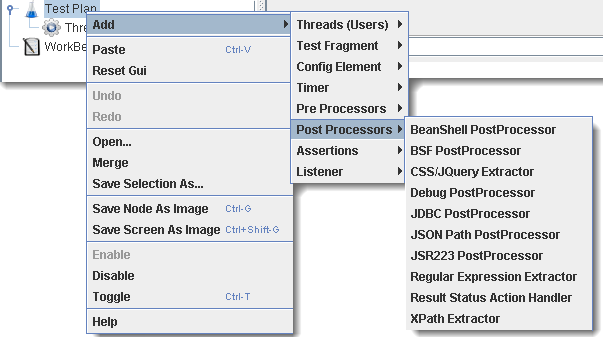
As you can see, there are many other **useful post-processors** as well like:
- [Json Extractor](https://blog.octoperf.com/how-to-extract-data-from-json-response-using-jmeter/): extract content using [JsonPath](https://jsonpath.com/) expressions,
- [XPath Extractor](https://blog.octoperf.com/jmeter-xpath-extractor-guide/): extract content using [XPath Expressions](https://www.w3schools.com/xml/xpath_syntax.asp),
- [JSR223](https://jmeter.apache.org/usermanual/component_reference.html#JSR223_PostProcessor): run groovy / javascript / java scripts on the sample result.
How do we use it? Simply place it **under a sampler** like on the screenshot below.
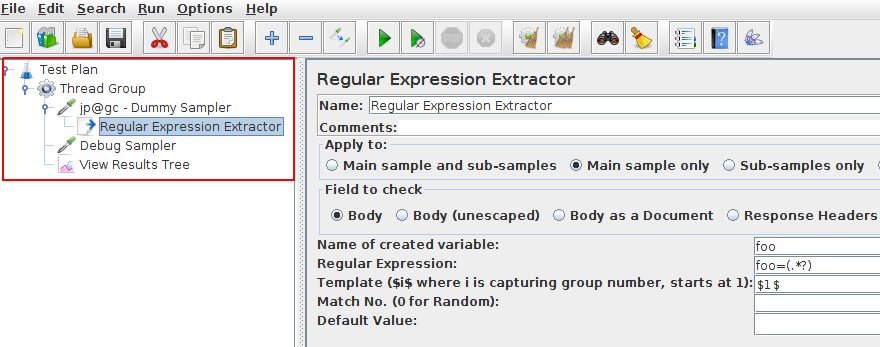
Here we have the regexp extractor placed under a [Dummy Sampler](https://blog.octoperf.com/jmeter-plugins-installation-guide/). The regular expression will be **executed after the dummy sampler**.
> Post-Processors are sequentially executed in the order they are defined under a sampler.
[JMeter's Regex Extractor](https://jmeter.apache.org/usermanual/component_reference.html#Regular_Expression_Extractor) is a **Post-Processor**:
- **Must be placed as sampler child**: the post-processor is placed under a sample,
- **Runs after the sampler has been run**: and executes some logic on the sample result.
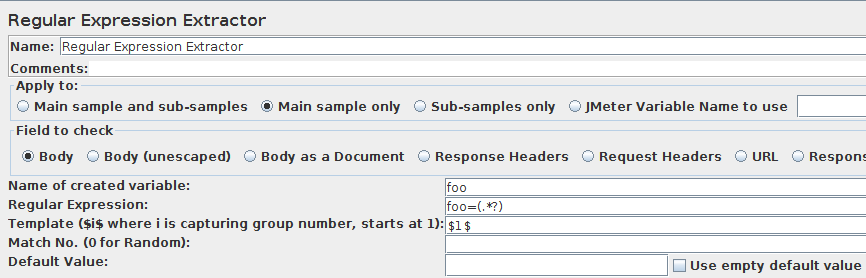
Now that we see how the extractor works, what's really the purpose of using it?
### Correlating Dynamic Values
Well, that's pretty simple: **handling dynamic parameters**. Typically, [CSRF tokens](https://fr.wikipedia.org/wiki/Cross-Site_Request_Forgery) fall into this category. But, they're not the only ones:
Well, that's pretty simple: **handling dynamic parameters**. Typically, [CSRF tokens](https://fr.wikipedia.org/wiki/Cross-Site_Request_Forgery) fall into this category. But, they're not the only ones:
- Handling `.NET` [viewstate](https://msdn.microsoft.com/en-us/library/ms972976.aspx),
- Managing [Oauth2 access and refresh tokens](https://fr.wikipedia.org/wiki/Cross-Site_Request_Forgery),
- and more.
To sum up:
> Dynamic parameters are session or request based tokens whose value changes frequently and is sent within a server response.
Well the **major drawback of protocol level testing** is that all the **browser side code or logic is not replayed**.
And this sometimes includes critical values not being computed/replaced automatically.
That's why dynamic parameters must be extracted and reinjected in subsequent requests. That's what we call **correlations**.
First before jumping into an example, here is a link to the documentation about the [Regular Expression Extractor](https://jmeter.apache.org/usermanual/component_reference.html#Regular_Expression_Extractor "JMeter Regular Expression Extractor") on JMeter's Website.
### Simulating Dynamic Behavior
Before we dive into the greater details, let's see a practical example of [dynamic parameter correlation](https://octoperf.com/tutorials/).
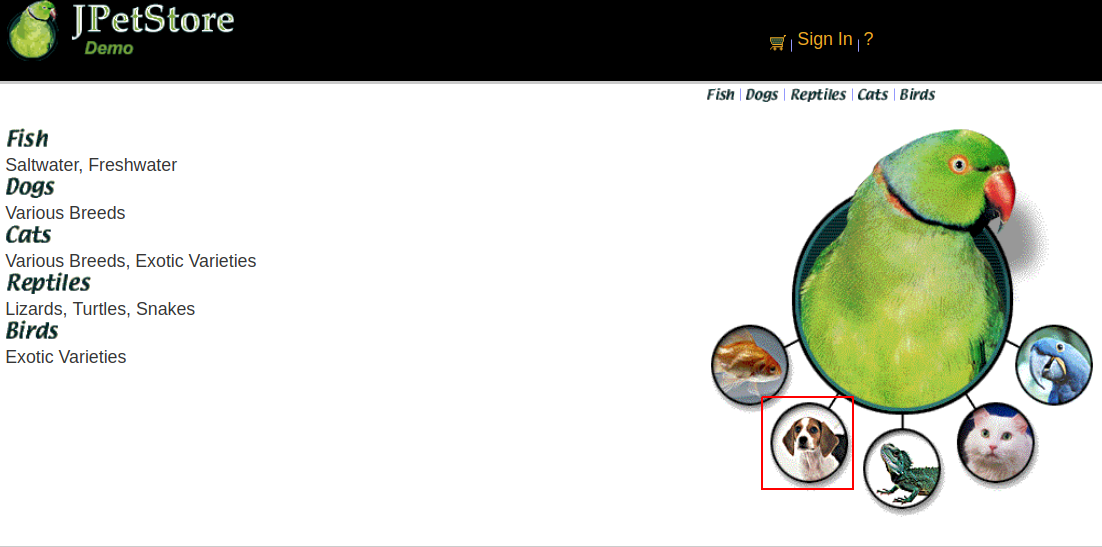
For this example, we'll use our [Petstore Demo](https://petstore.octoperf.com). The link highlighted in red translates into the following HTML:
```html
```
What if we want to **view a random category**? That's pretty easy with the regular expression extractor.
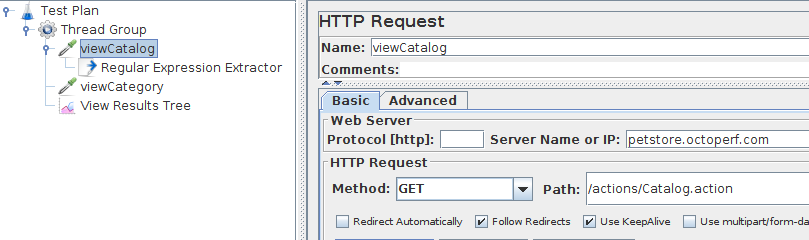
First, we define a sampler to request the catalog homepage.
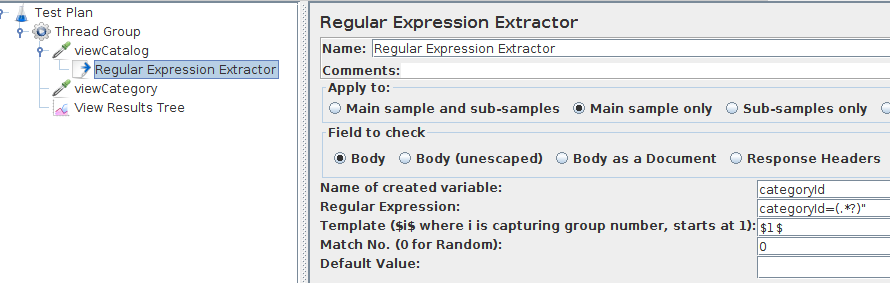
Then, we extract the `categoryId` from the server response using the following config:
- **Regex**: `categoryId=(.*?)"`,
- **Template**: `$1$`,
- **Match Nr**: `0` (which means random).
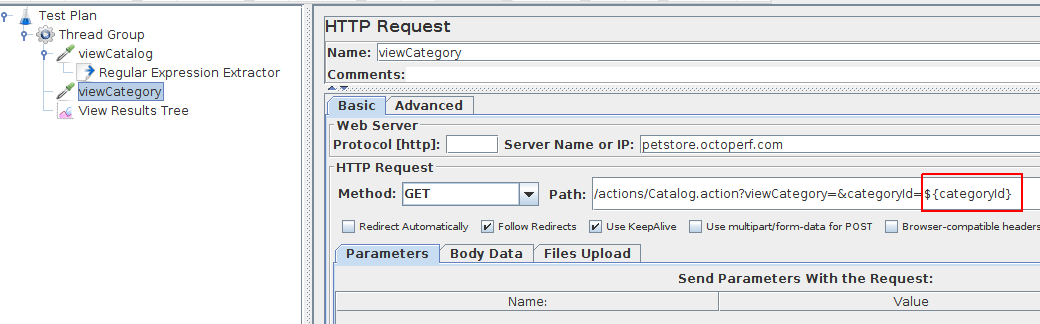
Finally, we reinject the `${categoryId}` variable into the request path, which becomes:
```
/actions/Catalog.action?viewCategory=&categoryId=${categoryId}
```
Let's run the sample!
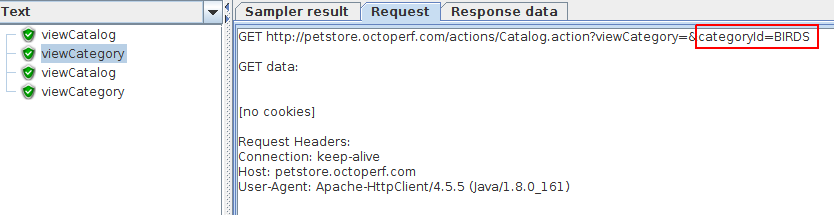
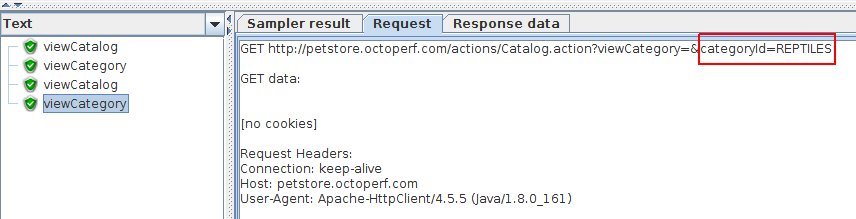
As you can see, the **random category selection** is fully working! We got two different categories on each run.
That's a great example of how you can **leverage Extracting Post Processors** to simulate a **user behaving dynamically**.
## Extraction Methods
### Extracting One Value
So first we will work on the following HTML response:
```html
```
It is quite simple, but will do nicely.
And once again I think it is better to start with an easy example.
Regarding our test protocol, this static page will be hosted in a local apache, so we will use the following configuration:
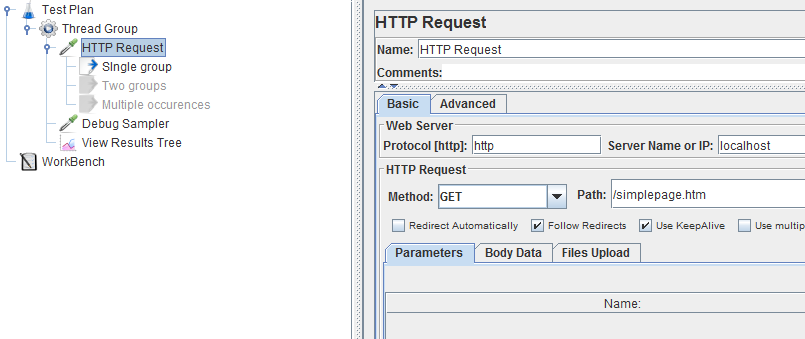
We will then try to extract the value of some of or all the inputs using regexp post processors.
And speaking of regex, we're going to use the following one:
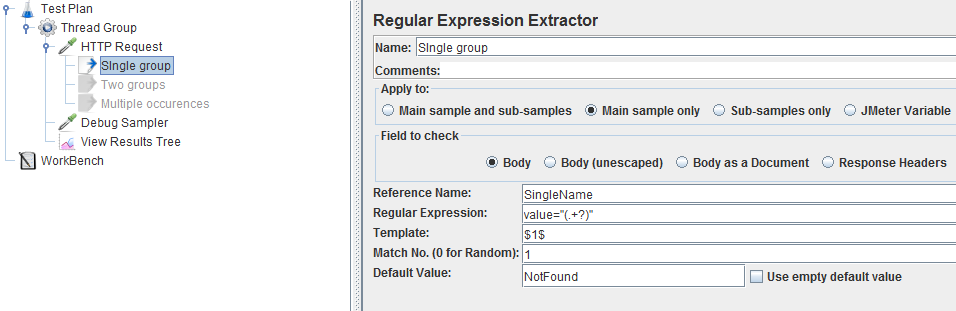
* **Field to check:** We will stick to the response body here, since we want to extract from the HTML.
* **Reference Name:** What's really important here is the `Reference Name` since this will be the variable name we can use later on.
* **Regular expression:** The regular expression field contains the regex itself, in our case we want to extract what's between `value="` and `"` and using `.+?` we will extract any character (except newline chars: `\n \r`) that occurs one or more times.
Since we want to use this value later on we've put parenthesis around it. This will place it in what's called a group.
* **Template:** And speaking of group, that's exactly what you can see in the template field. Here we state that the value of the _SingleName_ variable should contain the first group.
* **Match No.:** The match number is appropriate when the regex corresponds to several values in the response.
Which is true in our case, if you look at the HTML there are two `value="` fields that could correspond.
For now we want to keep it simple and will always extract the first one.
* **Default value:** And last the default value is the value of the _SingleName_ variable when no match was found.
Now we will be using the _Debug sampler_ to control the extracted value of our regex:
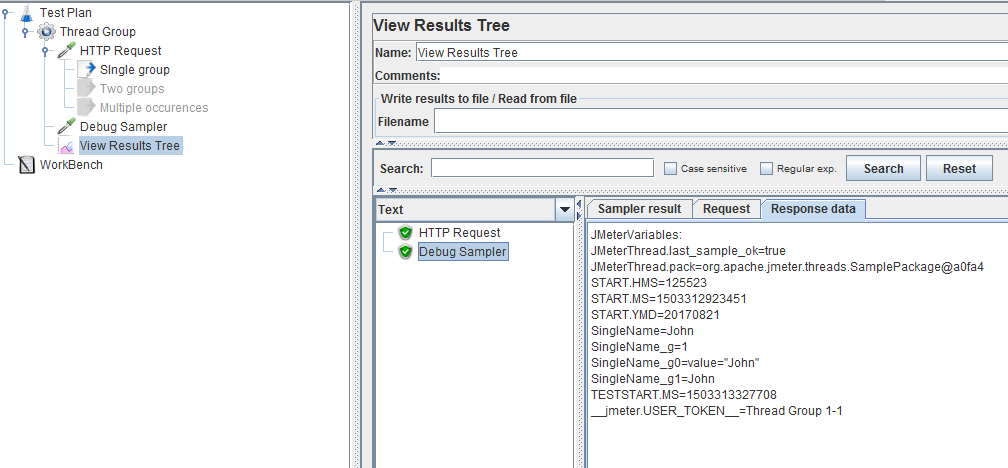
This sampler will let us know the current value of all variables, so I strongly suggest you use it too.
It is a very good way to learn how regex work through quick trial and error.
In our case we can see the following values:
```
SingleName=`John`
SingleName_g=`1`
SingleName_g0=`value="John"`
SingleName_g1=`John`
```
The first one is the most commonly used, since it is the variable itself, it contains the first occurrence of our regex in the HTML.
If you want to try it out on your side, you can copy/paste the HTML and regex in a testing tool like
[Regex101](https://regex101.com/ "Regex101").
The other values are not always proper, but they give us some details:
- `_g` : The number of groups, ie regex within parenthesis.
- `_g0` : value of group 0 that contains the extracted value along with the boundaries.
- `_g1` : value of group 1, useful in case you have nothing specified in the template, or if you have several groups, but more on that later.
To conclude this first example, we can see **the value we extracted is the one we expected to have**, which is the only thing that matters.
Also we've seen that there are **other variables created automatically by JMeter**, so now we will have a closer look at them.
### Extracting Multiple Values
A use case that is often encountered is when you want to extract not only one value, but the list of all values.
This is what is called multiple occurrences.
The regex is not much different:
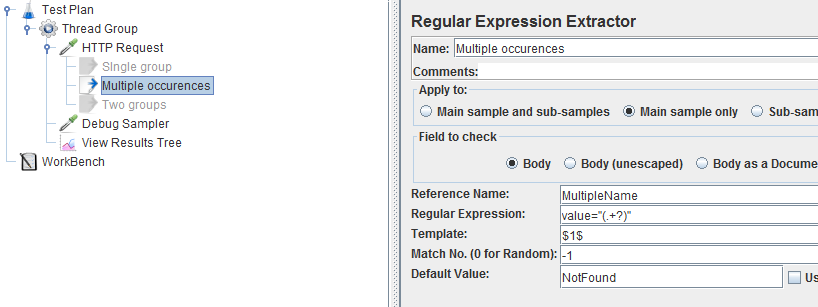
I've just used a different name and a negative occurrence number.
This will tell JMeter to extract all available occurrences.
**Note that occurrence 0 tells JMeter to extract one occurrence randomly amongst all that are available.**
And the result is much different this time:
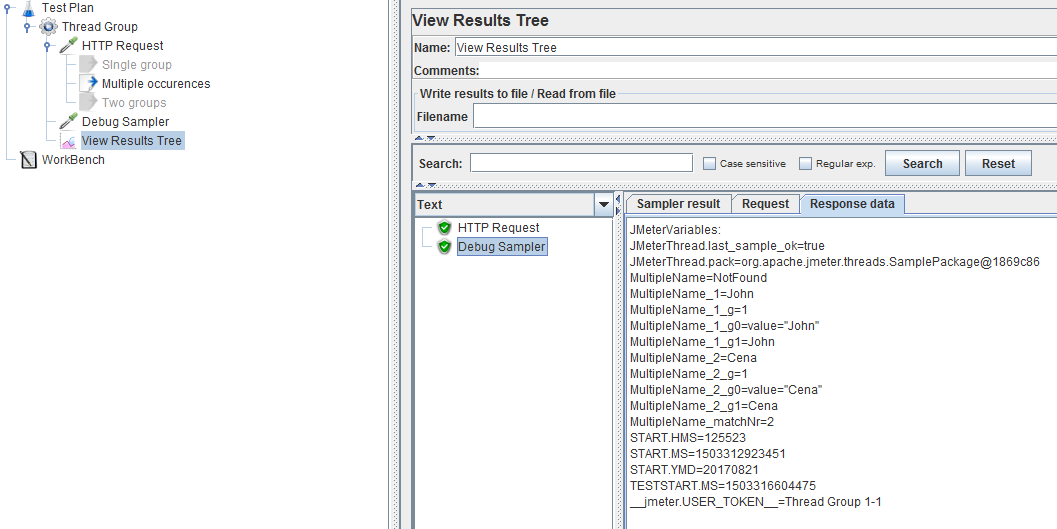
We see the following values:
```
MultipleName=NotFound
MultipleName_1=John
MultipleName_1_g=1
MultipleName_1_g0=value="John"
MultipleName_1_g1=John
MultipleName_2=Cena
MultipleName_2_g=1
MultipleName_2_g0=value="Cena"
MultipleName_2_g1=Cena
MultipleName_matchNr=2
```
The first one now contains the `default value`, this is because it's mandatory to refer to an occurrence number now.
To do that you must add `_1` at the end of the variable name, and before the group number.
Which is why **we can see the same 4 values than last time** but with `_1` in their variable name and also **4 other values corresponding to the second occurrence**.
The `_matchNr` tells us how many occurrences were extracted, this can be convenient when you want to loop on them, although I would recommend the [For Each loop](https://jmeter.apache.org/usermanual/component_reference.html#ForEach_Controller "For Each loop") that makes this process easier.
### Extract Linked Values Using Groups
So this time we will have a look at multiple groups.
The regex configuration will be as follows:
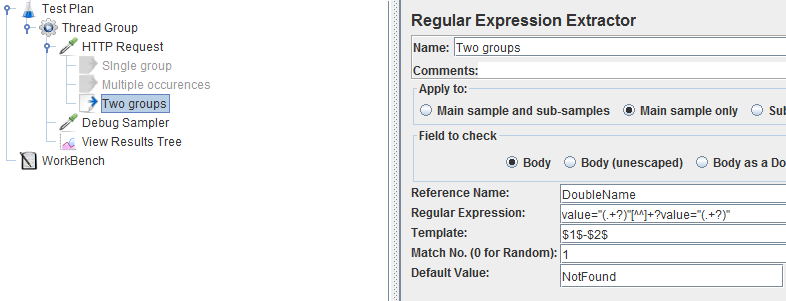
I think it's worth zooming on the regex:
```
value="(.+?)"[^^]+?value="(.+?)"
```
**The first part remains the same, so we will still extract the value of the first HTML parameter.
Then we use `[^^]+?` to specify that there can be any chars between the first section and what comes next.
Using `[^^]` guarantees we will not even stop at end of lines, technically it means everything except the `^` sign.
**And then we have the first section again, this time to extract the value of the second HTML parameter.**
The template is also different since we have two groups, I decided to use a value template with group 1, a dash, and group 2.
This way when we use the variable name instead of a specific group, we expect something like this: `John-Cena`.
And the result is:
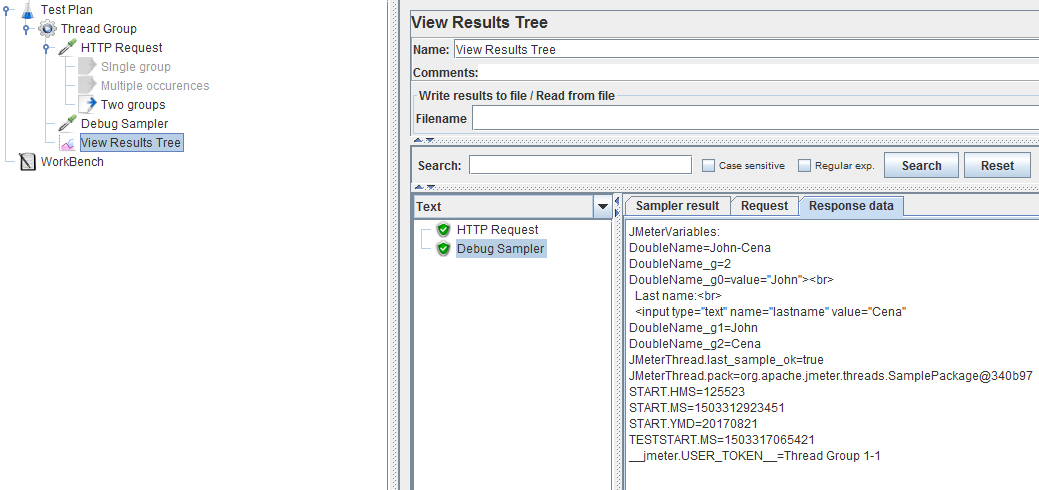
Let's have a closer look at the values:
```
DoubleName=John-Cena
DoubleName_g=2
DoubleName_g0=value="John">
Last name:
`(?m)`: `m` enables multiline treatment of the input.
Multi-line (?m) modifier is normally placed at the start of the regex. For Example: `(?m)value="(.?+)"`. In this case, the value between double quotes (`"`) is matched on multiple lines.
## Example Regular Expressions
Before I conclude, I'd like to share some regex example I often use.
Feel free to share your best regex in the chat below as well!
When dealing with **HTML parameters**, you want to extract values that are between double quotes `"`.
To do so, I always use the following regex, since **it will stop only when encountering the next double quote**.
And this can be practical on some applications:
```
[^"]+?
```
When dealing with more complex situations, you can sometimes easily create a simple regex by **extracting just numerical chars**:
```
\d+?
```
Or **alphanumerical chars only**:
```
\w+?
```
Also the multi-line regex we've seen earlier can be useful when dealing with **very long values**:
```
[^^]+?
```
And of course you can create your own character classes depending on the situation, here for a [uuid](https://en.wikipedia.org/wiki/Universally_unique_identifier "uuid") (ex:123e4567-e89b-12d3-a456-426655440000):
```
[a-zA-Z0-9-]+?
```
## How OctoPerf Helps
As we've seen regex are pretty powerful but at the same time they require experience.
But since they are the most efficient way to extract data it is important to be able to use them efficiently.
For this reason, we have created a simple mode on top of the regex post processor in OctoPerf.
This will allow you to just select the text you want to extract:
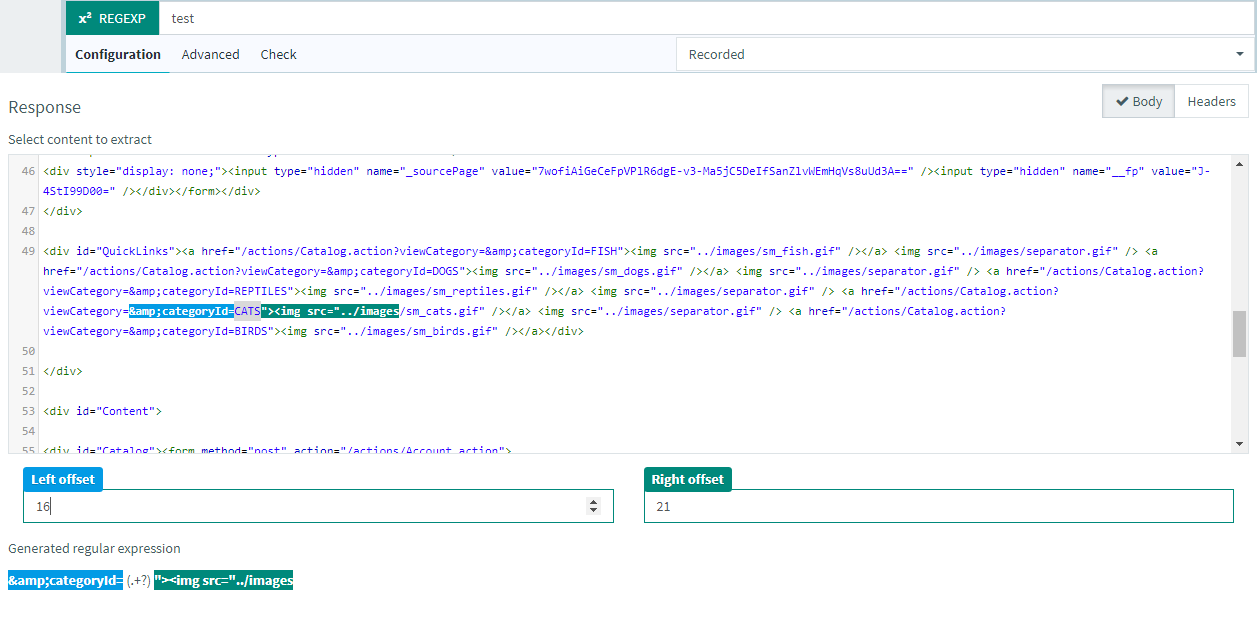
And when you go to the advanced tab, the regex, template, match number and default value have been pre-filled with your selection:
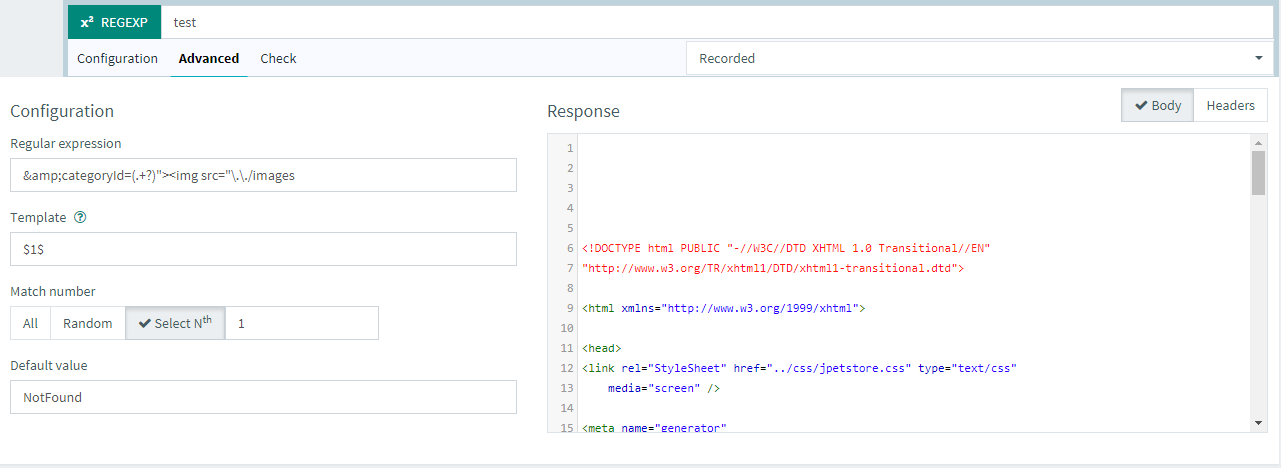
Any special char will also be escaped automatically, and as you can see you have the same possibilities than in JMeter.
What makes it even better, is that you can instantly test it through the "check" tab:
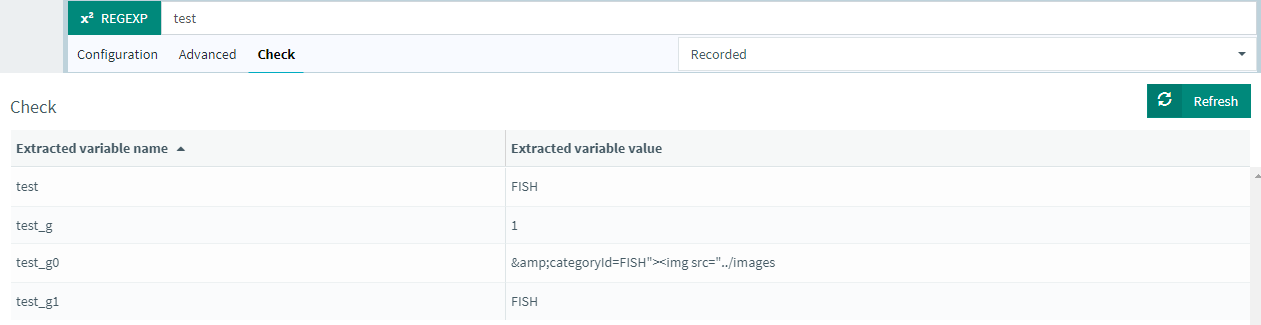
Last but not least, since you're likely to have to use the same regex in several places, instead of copy pasting it manually, you can use [our correlation rule engine](https://api.octoperf.com/doc/design/edit-virtual-user/configuration/auto-correlation/ "Correlation") to automate the search and replace of your regex.
## Q&A
> Wouldn't it be better to use the new CSS/jQuery extractor. Are there any advantages to using regular expressions?
Although **CSS / JQuery extractors** may help to extract content from the server response more easily, there is a trade-off: they **consume way more CPU and Memory resources**.
The learning curve is also stepper. Regexp are usually wide-spread in many loading tools while CSS / JQuery extractions seem to be limited to JMeter.
As they parse the response before processing it to extract the content, you may end up simulating less users per load generator.
> What If I don't know how to write regular expressions?
Take a look at [Regexp Coach](https://www.weitz.de/regex-coach/), it's a great tool to test regular expression on arbitrary content.
## Mastering Post-Processors
[JMeter Post-Processors](https://jmeter.apache.org/usermanual/component_reference.html#postprocessors) are at the heart of Performance Testing:
Who Masters Correlations, Rules Performance Testing.
And since **protocol based testing is still the best way to stress an application** it is important to understand at least the basics of this process.
Want to improve your JMeter skills? There are some great **JMeter Books** out there!
