OctoPerf MCP Server, Fully On-Premise: AI Load Testing With a Local LLM
When we released the OctoPerf MCP Server, it ran as a hosted endpoint at https://api.octoperf.com/mcp, and most teams connect to it straight from Claude.ai or Claude Code. But a recurring question came from banks, hospitals, defense and public-sector teams: what if nothing is allowed to leave our network, not even the prompt? This article answers that question with a full walkthrough.
We will stand up a 100% on-premise, air-gapped stack, and it only takes two things to install: OctoPerf Enterprise in Docker, and a local Qwen3 large language model running in LM Studio, which doubles as the Model Context Protocol client. By the end, you will drive your load tests in plain language from a chat window, with no API key, no cloud LLM and no outbound traffic.
Table of Contents
- The Fully On-Premise Architecture
- Step 1 - Install OctoPerf Enterprise With Docker
- Step 2 - The MCP Server Is Already Running
- Step 3 - Run and Connect a Local LLM With LM Studio
- Step 4 - Run a Test Prompt
- What This Unlocks
- Conclusion
The Fully On-Premise Architecture

The hosted setup has three moving parts: your browser, a cloud LLM (Claude), and OctoPerf. Going fully on-premise means replacing the cloud LLM with a local one and pointing everything at machines you control. The result is three logical components, but only two things to install:
- OctoPerf Enterprise, the load testing platform: design, run and analyze tests on your own hardware (Docker),
- the OctoPerf MCP Server, a stateless bridge that exposes around 100 tools to any AI agent, bundled with OctoPerf Enterprise, so it comes for free with the install above,
- LM Studio, a single desktop app that both runs the Qwen3 model locally and acts as the Model Context Protocol client talking to OctoPerf.
The data flow is a closed loop. You type a request in LM Studio, the local Qwen3 model decides which OctoPerf tools to call, LM Studio forwards those calls to the on-premise MCP server, and OctoPerf executes them against its own backend and load generators. Not a single byte reaches the public internet, which is exactly what a regulated environment requires.
Step 1 - Install OctoPerf Enterprise With Docker

OctoPerf Enterprise ships as a Docker Compose package, and the on-premise installation documentation already walks through prerequisites and every option. Here is just the short path on a Linux host with Docker installed.
Grab enterprise-edition.zip from the download page (this guide uses OctoPerf Enterprise 16.2.1), set server.hostname in config/application.yml if the auto-detected address is wrong, then start everything:
unzip enterprise-edition.zip && cd enterprise-edition
make
make pulls all the services, including the bundled MCP server, and exposes them on port 80. After about a minute, open http://<YOUR_HOSTNAME>, create your account, and you have a complete self-hosted OctoPerf, the same platform we run as SaaS, but entirely under your control.
Step 2 - The MCP Server Is Already Running
Here is the part that surprises people: there is nothing extra to install. The MCP server is one of the services make just started (octoperf/mcp-server), published under /mcp by the bundled nginx proxy. The shipped config/mcp/application.yml already advertises the same public origin as the backend, which is all it needs, and the on-premise MCP server documentation covers the rest.
What matters for this article is what running on-premise unlocks. OctoPerf Enterprise ships a bundled OAuth Identity Provider, so there are no API keys and no external login. Every tool call is authenticated as you through your own OctoPerf account, and you can revoke that authorization anytime from the Connected Apps page.
To confirm the endpoint is live, the public route returns the agent manifest without any authentication:
curl http://<YOUR_HOSTNAME>/mcp/public/AGENTS.md
A markdown document listing the tool catalogue means you are ready.
Step 3 - Run and Connect a Local LLM With LM Studio
Now the missing piece: a local model to replace the cloud LLM, and a client to connect it to the MCP server. A single app covers both. We recommend Qwen3 (by Alibaba), currently the most reliable open-weights family for tool calling, the capability that matters most here. Driving around 100 MCP tools means the model must pick the right tool and emit valid JSON arguments every time, and Qwen3 has the lowest rate of dropped or malformed tool calls among models you can run locally.
To run it, we use LM Studio, the simplest path by far: one desktop app that runs the model itself (no separate inference server) and, since v0.3.17, also acts as an MCP host with OAuth support. That single choice removes the need for a separate model server and a separate chat client.
After installing LM Studio (Windows, macOS and Linux), the whole setup happens inside the app, in five short steps.
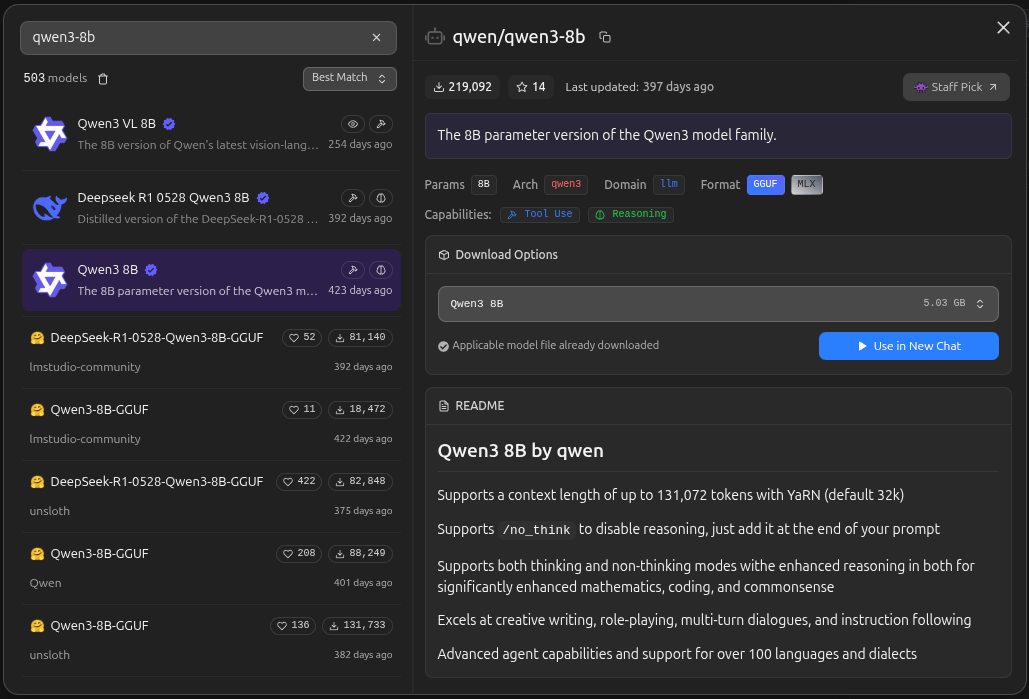
1. Download a tool-capable Qwen3 model. Open Model Search (left tab, or Ctrl+Shift+M), search for qwen3 and pick a text model that shows the "Tool Use" badge: qwen3-8b is the sweet spot, step up to qwen3-14b if you have the headroom. Avoid the Vision-Language (VL) variant, it does not drive tools. Click Download and wait, the weights are several GB.
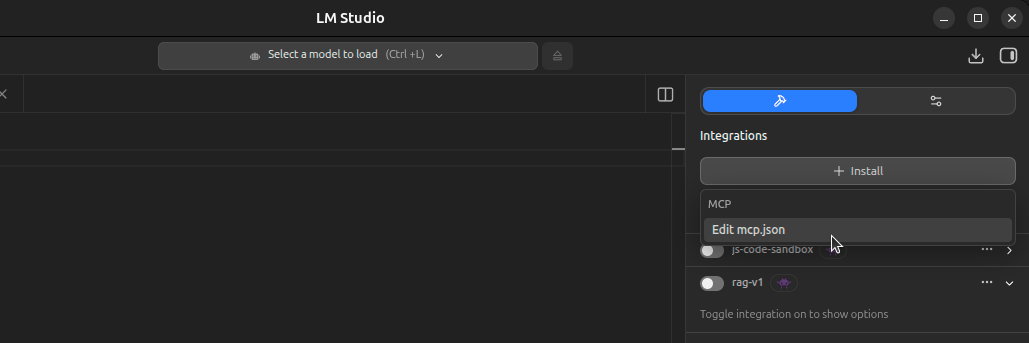
2. Add the OctoPerf MCP server. In the right-hand Integrations panel, click Install ▸ Edit mcp.json, and declare the server by its URL, nothing else:
{
  "mcpServers": {
    "octoperf": {
      "url": "http://<YOUR_OCTOPERF_HOST>/mcp"
    }
  }
}
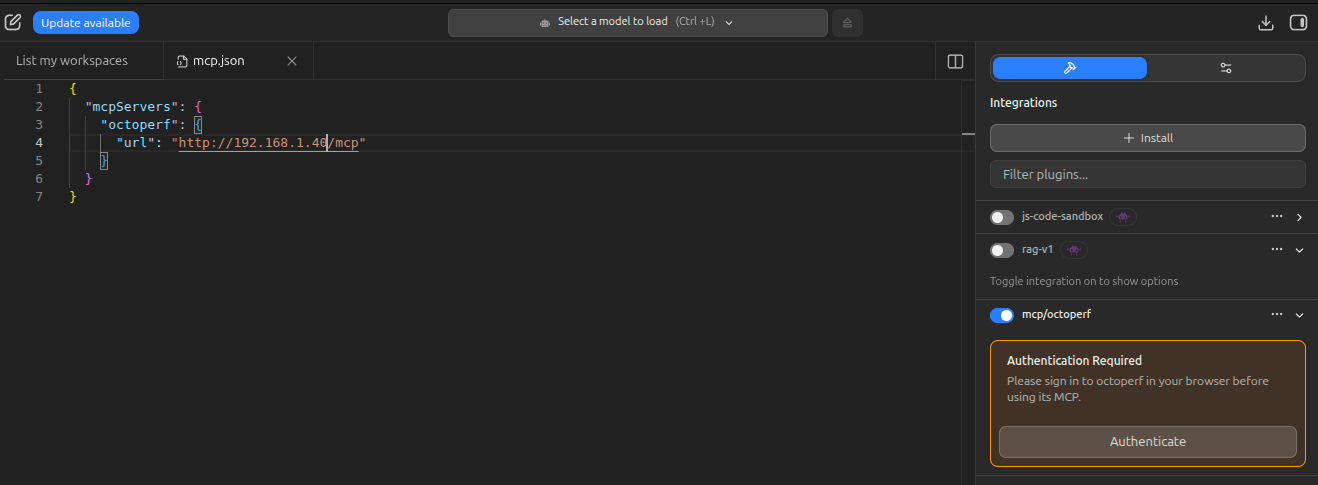
3. Authenticate against OctoPerf. There is no token to paste: once you save, the mcp/octoperf integration shows an Authentication Required notice with an Authenticate button. Click it, and LM Studio opens OctoPerf's bundled OAuth login in your browser. Sign in, approve, and the token is cached for next time. From then on, the model acts on your behalf inside OctoPerf.
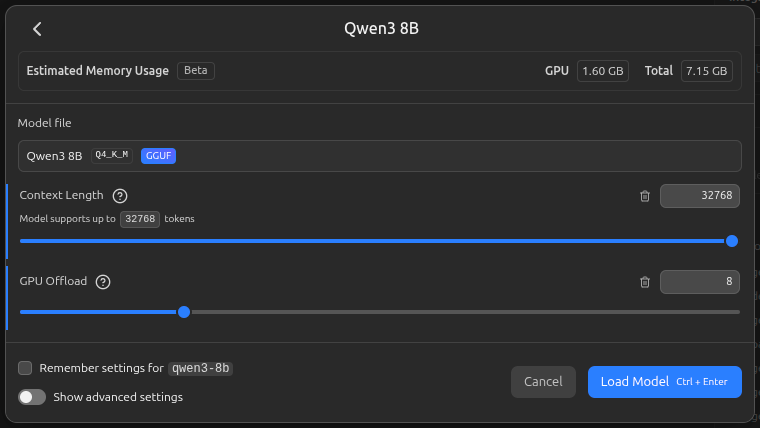
4. Load the model with the right memory settings. This is the step most people get wrong. The roughly 100 OctoPerf tool definitions take about 23,000 tokens, so loading the model with the default 8K context fails with an n_keep >= n_ctx error before it can even answer. Set Context Length to 32768 when you load Qwen3, and watch the estimated memory: on an 8 GB GPU, lower the GPU Offload (here 8 layers) so the weights plus the larger KV cache fit, the overflow then runs on system RAM, slower but working.
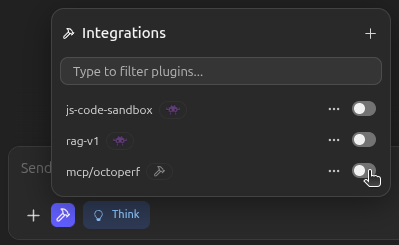
5. Enable the integration for the chat. Declaring the server in mcp.json is not enough. In the conversation, click the tools (hammer) icon and switch mcp/octoperf on. This is what actually wires the tools into the model for that chat.
Step 4 - Run a Test Prompt
Time to prove the loop is closed. Start with a simple discovery prompt:
You: List my OctoPerf workspaces and the projects inside them.
Qwen3: (calls
list_workspaces, thenlist_projects_by_workspace)You have 2 workspaces:
- Default Workspace - 3 projects: Pet Adoption Store, Checkout API, Internal Billing,
- QA Sandbox - 1 project: Smoke Tests.
Each project links straight back to its page in OctoPerf. Want me to open one of them or start a new test?
That round trip alone confirms the full chain works: local model, local MCP server, local OctoPerf backend. Now push it into real work, chaining several tools in one request:
You: Create a project called Local Checkout, import the HAR file I attached as a Virtual User, and run a functional validation on it.
Qwen3: (calls
create_project,import_har_virtual_user, thenvalidate_virtual_user)Done:
- Created project Local Checkout,
- Imported
checkout.haras a Virtual User with 24 actions,- Launched a validation. 9 of 24 actions are failing, mostly authentication errors that look like a missing correlation. Want me to triage them and auto-correlate?
This is the same validation-triage and auto-correlation workflow we showed with the hosted server, except here the prompt, the model, the tool calls and the test data never left your network. The only thing that changed is where the intelligence runs.
What This Unlocks
Running the stack on-premise is not only about ticking a compliance box, though it does that cleanly:
- data sovereignty: prompts, scripts, recordings and results stay inside your perimeter, which is often a hard requirement in finance, healthcare and public sector,
- no token bill: a local model has no per-call cost, so you can let the agent explore freely,
- predictable latency: no dependency on an external API's availability or rate limits,
- the same AI experience as SaaS: identical MCP tools, identical skills, identical workflows.
It also fits naturally into the broader picture we described in bridging open source and enterprise performance testing: you keep full control of your infrastructure while gaining a modern, AI-driven workflow on top of it.
Conclusion
With just two things to install, OctoPerf Enterprise in Docker (which already bundles the MCP server) and LM Studio running Qwen3 as the client, you get the entire OctoPerf AI experience without anything leaving your walls. The MCP server is already part of the Enterprise package, so the real work is just downloading a local model and pasting one line of config.
If you want to go further, explore the bundled MCP skills for validation triage, auto-correlation and scenario diagnosis, all of which run exactly the same against your on-premise instance. And if you are still evaluating, our SaaS platform lets you try the same MCP-driven workflow in minutes before you commit to a self-hosted deployment.